
Relay: use an Xbox controller to access Windows
The controller in your hands can do more than play games. Relay gives it a practical role in moving around the Windows desktop, with controls you can shape around the person using them.
Some people can use a controller comfortably but find a mouse or keyboard difficult to manage. I built Relay around that practical starting point: what if a familiar controller could become a useful way into the whole Windows desktop?
Relay is now available as a public beta for Windows. It works with an Xbox or compatible XInput controller and lets you move the pointer, click, drag, scroll and use a large on-screen keyboard. It can also put selected Windows accessibility tools within reach of controller buttons.
Start with the task, then set the controls
Relay's guided setup asks what help you want, such as zoom, reading aloud, captions, steadier movement or on-screen typing. It then creates a profile and shows the assignments before you save it. If pressing two buttons together is difficult, there is a one-button-at-a-time option.
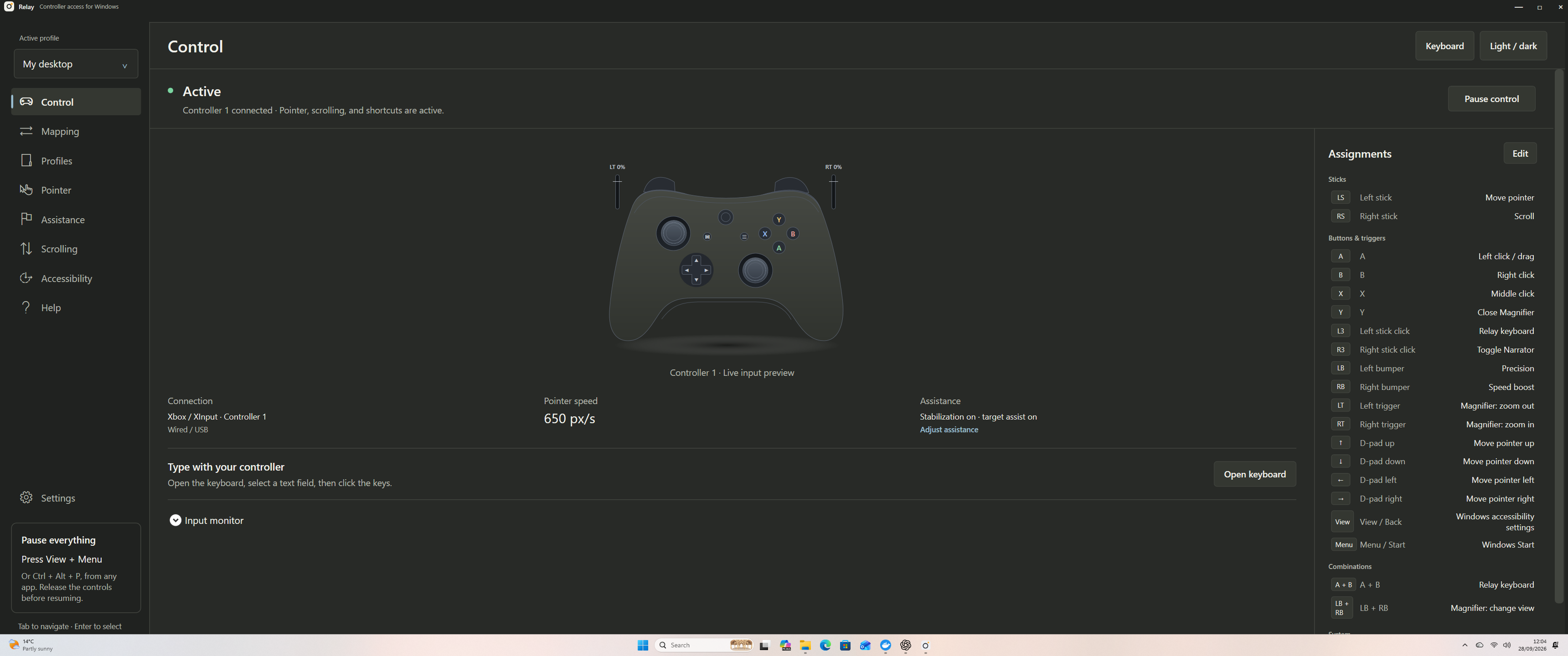
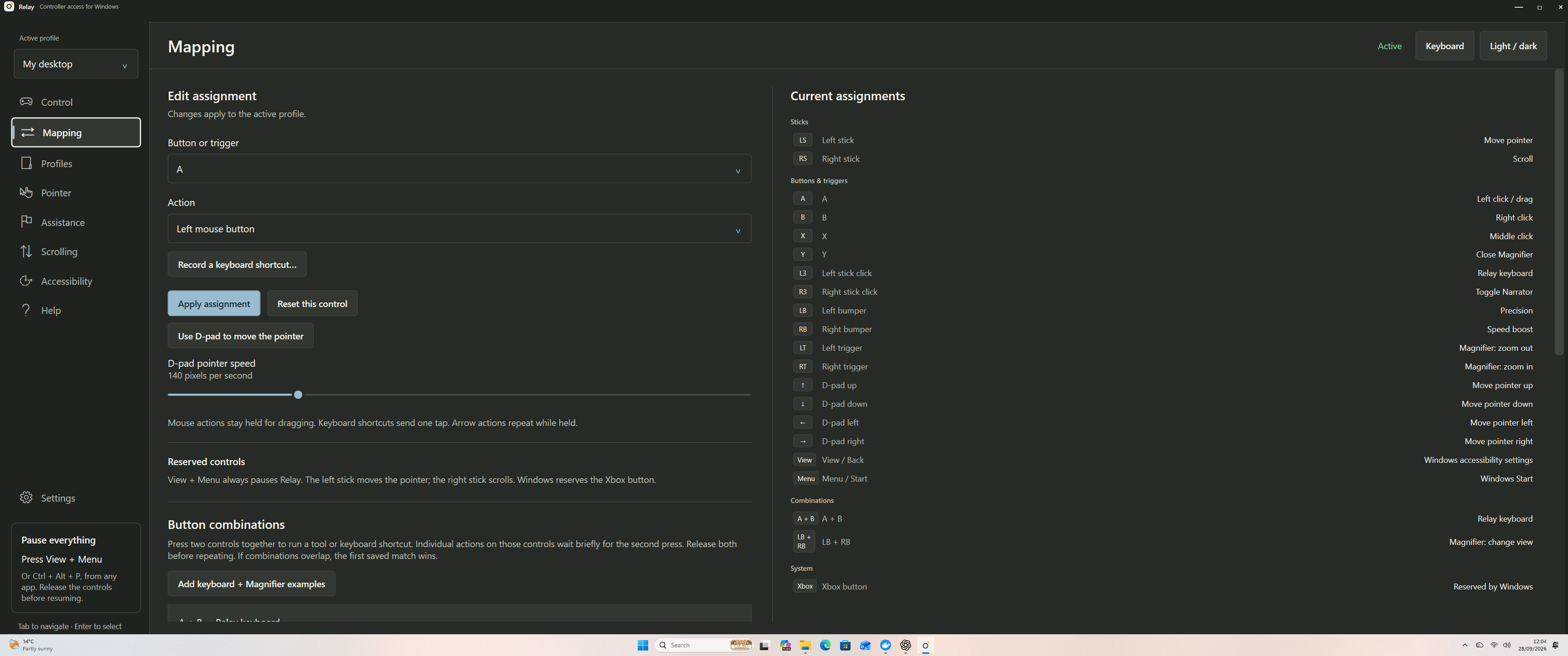
The everyday starting controls are simple: the left stick moves the pointer, the D-pad moves it more slowly, A clicks, B right-clicks and the right stick scrolls. Holding a mapped mouse button allows dragging. The active profile can change these assignments, so the Control page is the place to check what each button does now.
That distinction matters. A diagram of a “standard” controller layout is useful only until someone changes it. Relay keeps the current assignments visible and lets you remap buttons, triggers and combinations for the work you actually do.
Make small movements easier
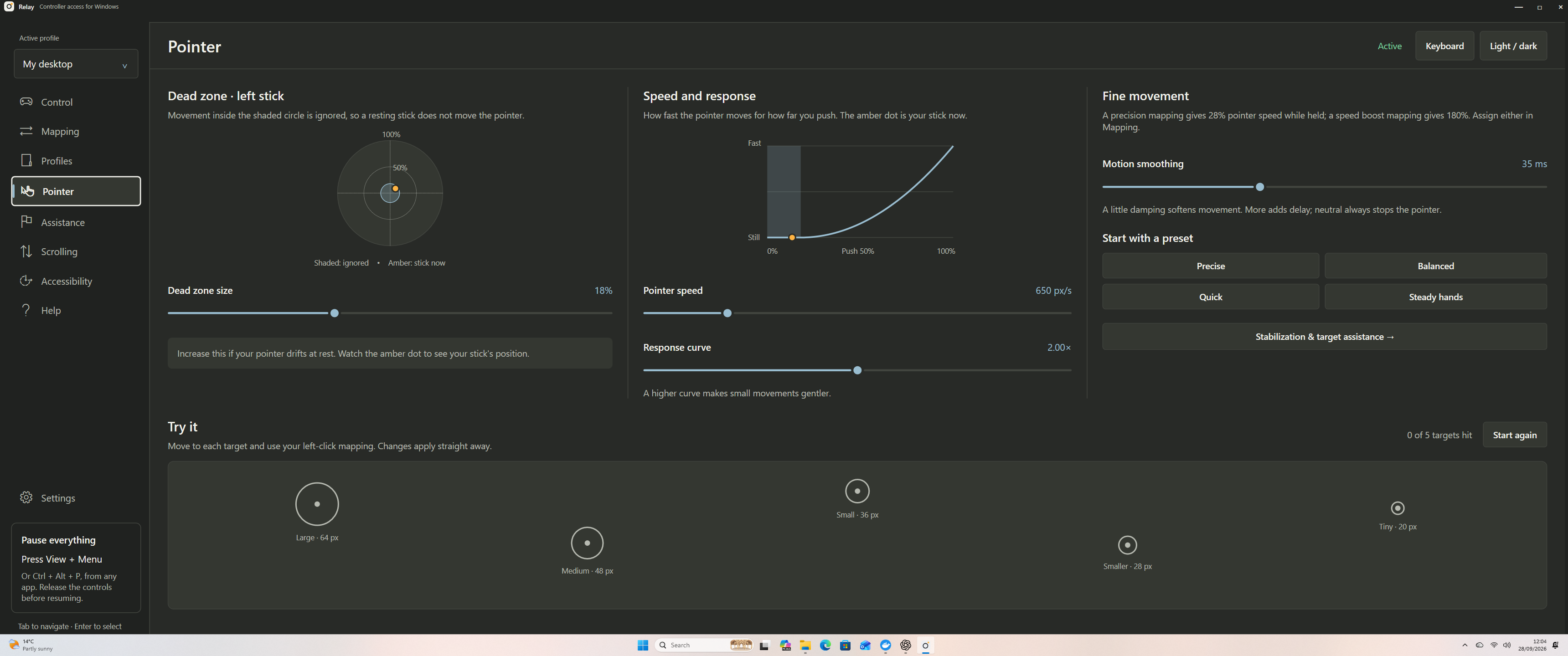
Pointer control is rarely just a question of speed. Relay has settings for the stick's dead zone, response curve and smoothing, plus a practice area with targets of different sizes. You can make small movements gentler without making every journey across the screen feel slow.
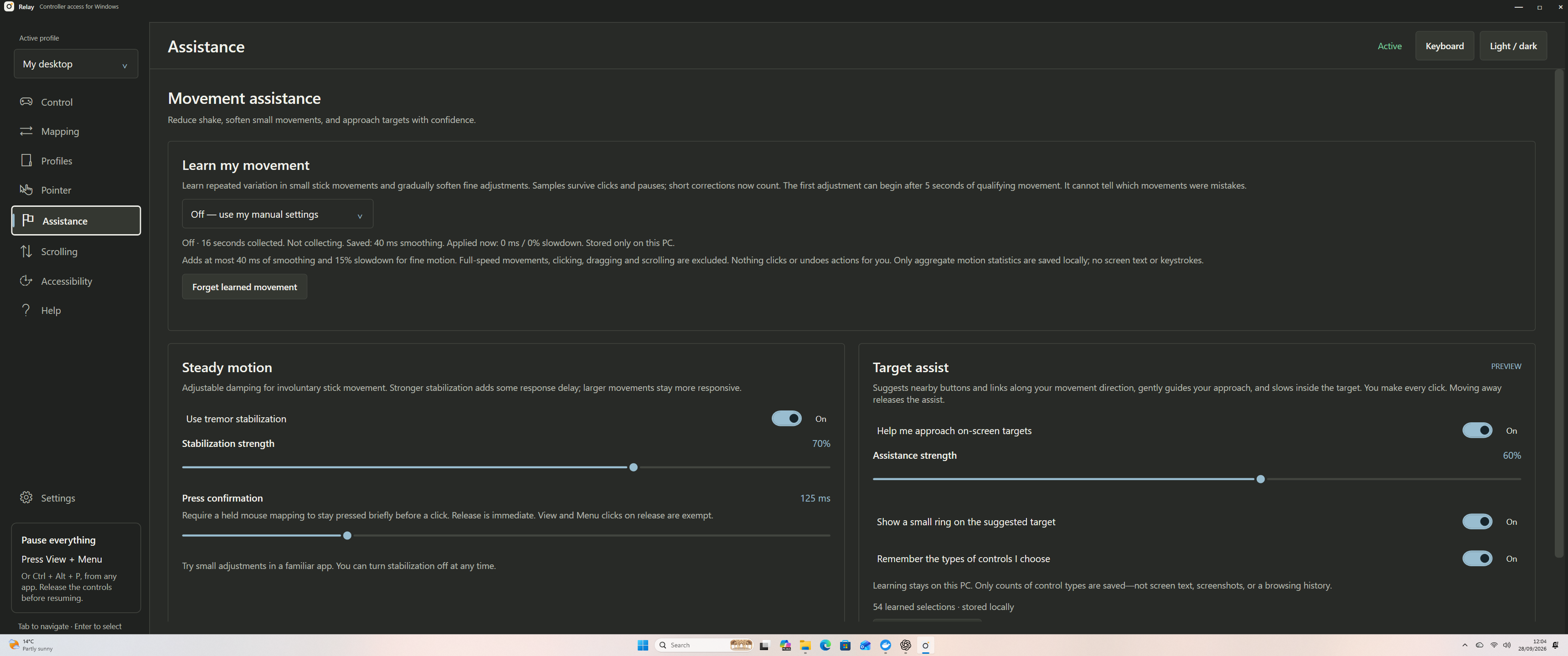
Optional assistance includes stabilisation for involuntary movement and target assist that can suggest nearby controls as you approach them. The person still chooses and makes each click. Optional movement learning adjusts fine movement gradually and can be turned off or reset; Relay says it stores aggregate movement statistics locally, rather than screen text or keystrokes.
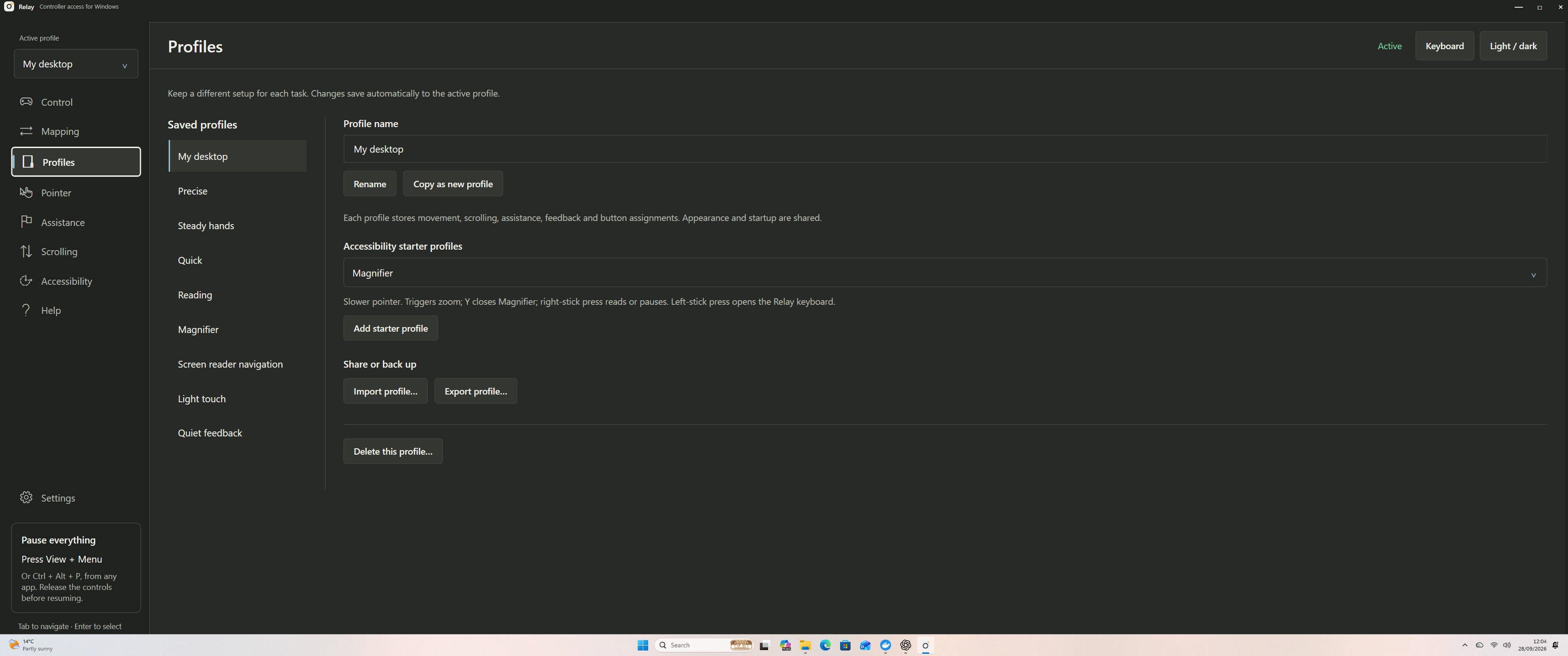
Profiles make it possible to keep different arrangements for different tasks. The app includes starter profiles for uses such as reading, Magnifier and screen reader navigation, and profiles can be copied, imported or exported.
Bring Windows tools into the same workflow
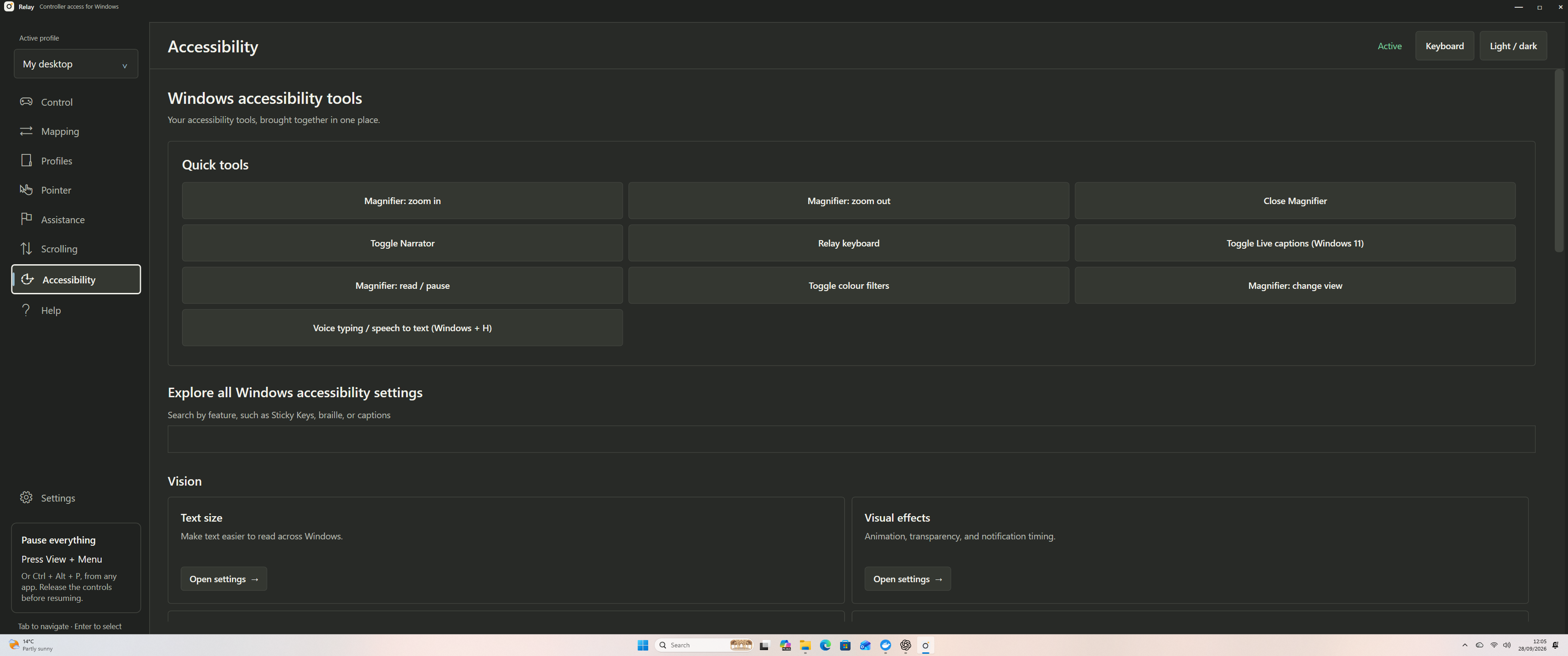
A controller can also help reach tools that would otherwise require remembering a keyboard shortcut. Guided setup can assign the Relay keyboard, Windows Magnifier, Narrator, Live captions on supported versions of Windows, and voice typing. The Accessibility page brings quick tools and links to Windows settings into one place.
Relay launches or controls those Windows features; it does not replace them. Selecting help in setup prepares the controller shortcut, but it does not automatically switch on every Windows feature. What is available can vary with Windows version, language and connected hardware.
Always within reach: press View and Menu together to pause or resume controller output, or use Ctrl + Alt + P on a keyboard. Pause before using the controller in a game.
Inside Relay
A closer look at the controls
These screens show the current beta's settings. Open any image to read it at full size.
What the public beta means
Relay 1.4.0-beta.6 is a beta, and the testing is still expanding. It needs a Windows x64 computer running Windows 10 version 1809 or later, or Windows 11, and an Xbox or compatible XInput controller that already works in Windows. A microphone is needed only if you want Windows voice typing.
The installer is currently unsigned, so Windows may show an unknown-publisher or SmartScreen notice. Download it from the project's release page and check the supplied SHA-256 checksum if you want to verify the file. Relay may also be unable to send input to administrator windows and secure desktops, where a physical keyboard or mouse may still be needed.
There are other boundaries worth knowing. The Xbox guide button is reserved by Windows. Relay does not currently offer scanning, dwell clicking or automatic switching between profiles for different apps. Physical-controller testing across more access needs, assistive technology and Windows configurations remains to be done. I would not describe this beta as fully accessibility-validated yet.
Try it and tell me what gets in the way
The useful test is a real task: opening a document, reaching a small control, scrolling through a page, entering a few words, or switching to a Windows access tool. Which part feels easier? Which part still asks too much of your hands, attention or memory?
If you try Relay, the project README has setup steps, controls, privacy details and known limits. You can send feedback on GitHub with your Relay version, Windows version, controller model, connection type and the steps that caused trouble. You do not need to share a diagnosis.
Relay has no account, telemetry or application network calls. Profiles, settings and optional learned movement statistics stay on the PC. Windows features launched through Relay follow their own privacy settings.
For the thinking that led to this work, read how the controller project fits into my wider accessibility work.