
Why accessible PDFs are not the same as flat image documents
A PDF is not automatically accessible. Many documents look readable visually but contain no usable text, structure or reading order for assistive technology.
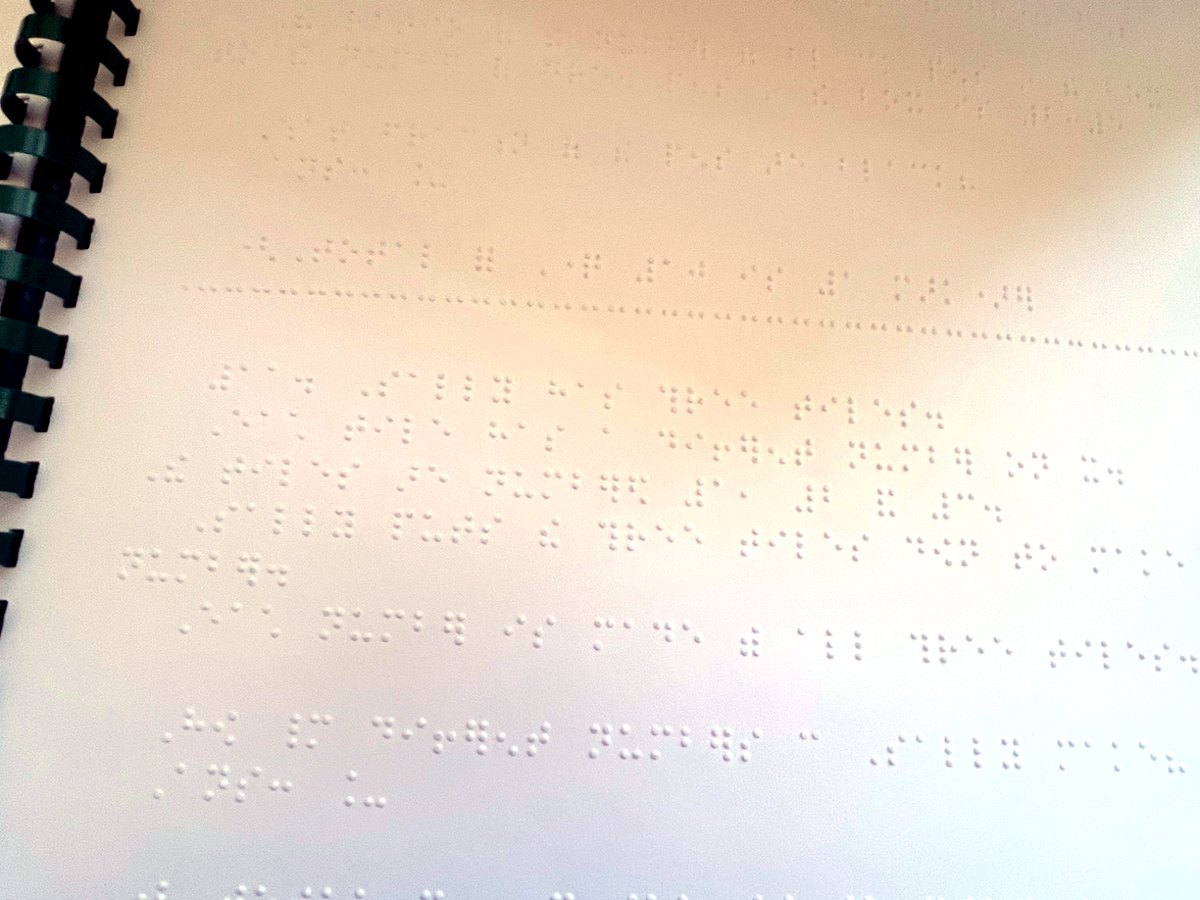
PDFs are used everywhere: reports, forms, care documents, school resources, workplace policies, training packs and professional letters.
But not all PDFs are the same.
Some PDFs contain real text, headings, links, form fields and a logical reading order. Others are simply flat images of pages. They may look fine on screen, but they can be extremely difficult or impossible to use with assistive technology.
What is a flat image document?
A flat image document is usually created when something has been scanned, exported from a design tool, photographed or saved in a way that turns the whole page into a picture.
To a sighted person, it may look like a normal document.
To a screen reader, it may contain very little useful information. Instead of reading the text, the software may only detect that there is an image on the page.
This can affect people who use:
- screen readers
- braille displays
- text-to-speech tools
- magnification with reflow
- keyboard navigation
- speech recognition
- document search
- translation tools
- reading support software
Why visual appearance is not enough
A document can look professional and still be inaccessible.
Accessibility depends on the information underneath the visual layout. Assistive technology needs to know what the text says, what order it should be read in, which parts are headings, which items are links, which images need descriptions and how form fields should be completed.
Without that structure, the user may be forced to rely on someone else to read, explain or recreate the document.
That is not independent access.
Common problems with inaccessible PDFs
A PDF may create barriers if:
- the text cannot be selected
- the reading order jumps around the page
- headings are only made visually large rather than marked as headings
- images contain important information but have no alternative text
- tables are not structured properly
- form fields are not labelled
- the document cannot be navigated by keyboard
- the contrast is poor
- the layout breaks when enlarged
- the file is a scan with no accessible text layer
These issues matter because they affect whether someone can actually use the document, not just whether they can open it.
Accessible does not always mean complicated
A more accessible document usually starts with simple decisions:
- Use real text.
- Use proper headings.
- Use plain structure.
- Avoid putting essential information only inside images.
- Make sure links have meaningful names.
- Check reading order.
- Provide alternative text for meaningful images.
- Use accessible Word or HTML where that would work better than PDF.
In many cases, the best solution is not to repair a poor PDF. It is to go back to the source document and rebuild it properly.
When PDFs are still needed
Sometimes a PDF is necessary. There may be a formal report, signed document, printable layout or professional requirement.
In those cases, the PDF should still be made as accessible as possible. It should not simply be a picture of text.
A good accessible document gives the reader more than a visual copy. It gives them a usable route through the information.
Why this matters in real life
For a person using assistive technology, an inaccessible PDF can block access to education, employment, care information, appointments, instructions, training or legal and professional communication.
The issue is not just technical. It is practical.
- Can the person read it?
- Can they understand it?
- Can they complete it?
- Can they search it?
- Can they use it without unnecessary dependence on someone else?
That is the real test.
Practical next step: you can contact AGL Access Works with one task, one barrier or one frustration. A short message is enough to start.
Related service: accessible document support for professionals and education settings.